Members and Teams
Members are user accounts in an organization. Teams group members for ownership, roles, budgets, attribution, and policy workflows.
Give a role to a team when all team members must have the same job function. For a direct member role, record a cause and review date.
Invite members
Open IAM → Members. Select Invite member. The invitation flow accepts one recipient or a batch of up to 100 recipients.
Before you send an invitation:
- Make sure that each email and organization is correct.
- Select the organization role with the minimum permissions.
- Identify if a team assignment is sufficient.
- Make sure that the invitee can complete the configured SSO and MFA path.
- Send the invitation.
- Monitor the invitation state.
The ordinary invitation actions do not include Owner roles. Promote an owner only through the owner-management workflow.
A pending invitation does not give membership. If an invitation stays pending, verify the address, expiry, and domain or SSO policy. Then, resend or revoke the invitation.
Use the member directory
The member list has search and operation fields. These fields can include status, MFA, last activity, team count, session count, and token count.
Use those fields as investigation starting points:
- Do not delete a member only because recent activity is missing.
- Use an MFA label only as the enrollment state.
- Review each token before you remove member access.
- Remember that team count does not show direct role grants.
Before you change access, open the member detail page. Review Permissions, Teams, Security, Tags, and Last accessed. A pending member also has an Invitation tab.
Create a team
Open IAM → Teams. Select Create team. Add this information:
- Add a stable function name.
- Add a short ownership description.
- Add only the members that must have the shared scope.
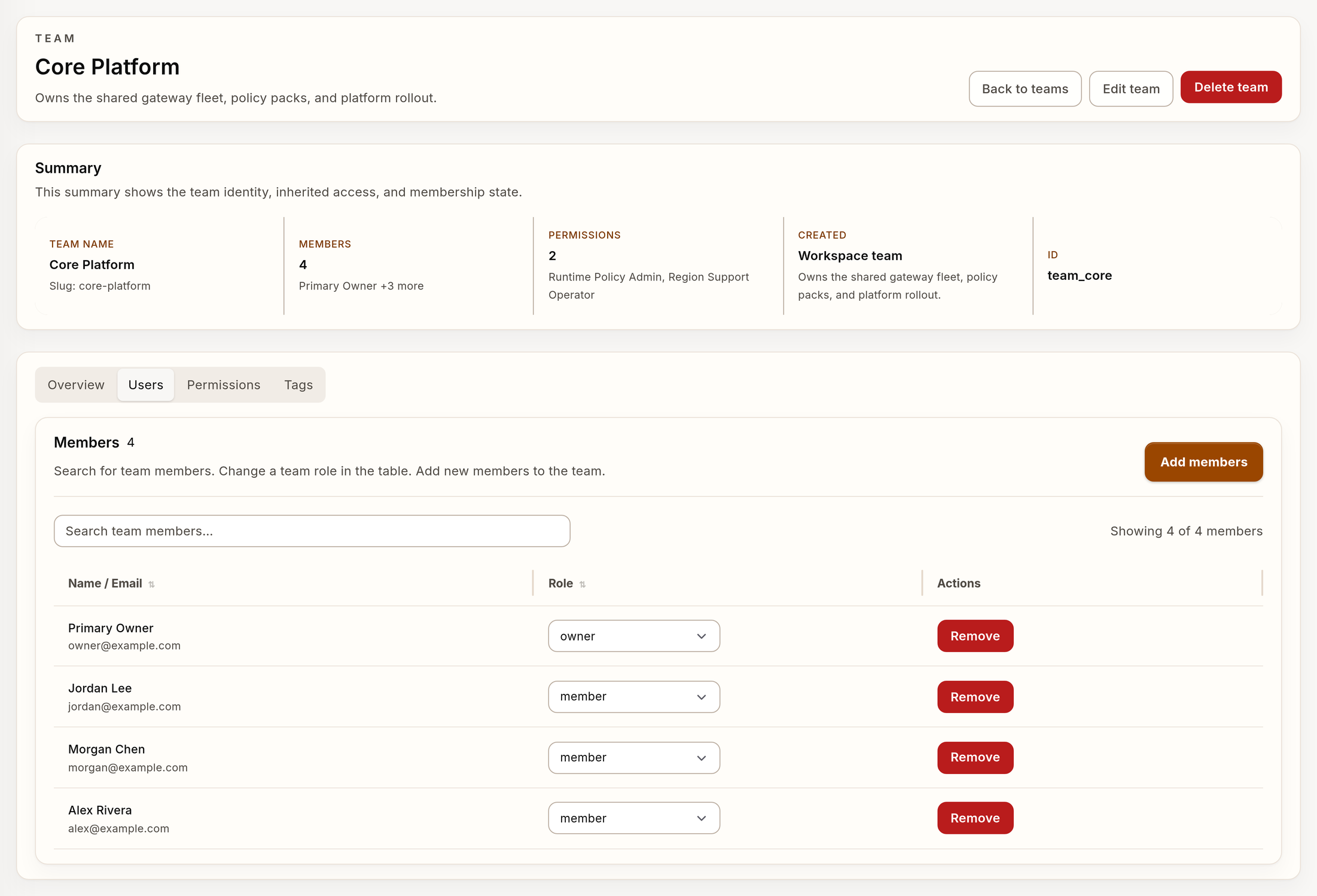
Example team detail view with synthetic members and inherited roles.
On the team detail page, manage membership and role grants as two operations. A team label and an IAM role have different functions. Do not use a display label as an authorization grant.
Change a member's access
When a member moves between functions:
- Add the new team or role.
- Test the resulting access with a representative non-owner account.
- Remove the previous assignment.
- Examine the remaining direct and inherited access.
- Review Trail.
This sequence reduces the risk of an unintended access interruption. It also gives minimum permissions at the end. For urgent access removal, first suspend the member.
Suspend, activate again, or remove
| Action | Use when | Reversible |
|---|---|---|
| Suspend | Access must stop at this time, but investigation or return is possible | Yes, through reactivation |
| Activate again | The organization approves access again | Yes |
| Remove from team | Only one team scope must end | Yes, by adding again |
| Remove organization membership | The person must not be an organization member | This action is destructive |
Before you remove organization membership:
- Keep the necessary audit and work records.
- Record owned tokens, OAuth relationships, sessions, teams, budgets, tags, and assignments.
- Move ownership of operations.
- First suspend the member when access must stop immediately.
- Get the necessary approval.
- Verify the result in Trail.
Removal from one team does not revoke direct roles or roles inherited from other teams.
Bulk actions
The member inventory can suspend, change roles, or remove multiple eligible members. Use a bulk operation only when each selected member has the same approved result.
Before you approve a bulk operation:
- Export or record the selected IDs.
- Make sure that the selection does not include owners or critical service accounts.
- Review the new role for each selected member.
- Use a small first batch.
- Verify the result and Trail events.
CLI workflow
verdictan user list
verdictan team list
verdictan team list-members --team-id team_example
verdictan role show-assignments --role-id role_example
See IAM, Members, Teams, and Roles for mutation commands.