Notifications
The Notifications system shows important platform events. Inbox is the canonical in-app delivery surface.
Quiet hours and category preferences control email copies of eligible notifications.
Before you start
- Sign in to the organization with the preferences that you want to change.
- To open Inbox, your role must have
notifications:read. - To open or save Settings → Notifications, your role must have
notifications:manage. - Email delivery must be enabled for your Verdictan deployment. Changing quiet hours cannot make an unavailable email channel deliver.
- The settings page edits the signed-in user's preferences. It is not an organization-wide notification policy.
Notification sources
| Source | Examples |
|---|---|
| Escalation lifecycle | Escalation queued, assigned, claimed, resolved, or rejected |
| Disposable API-token lifecycle | Expiry, request or budget depletion, rotation, and revocation events |
| Cost-governance state | Budget threshold or limit events that emit a notification |
| Conversation sharing | Access to a History conversation added or removed |
| Feedback | Confirmation that feedback was submitted |
| Service notices | Notices that Verdictan sends to the affected users |
The active product does not automatically create Inbox notifications for export completion, gateway health, config reload, budget thresholds, or team invitations. Do not rely on Inbox for those events.
Viewing notifications
Open Inbox from the side navigation. The active top bar does not include a notification bell or preview popover.
Use the Inbox for:
- Chronological notification list
- Read/unread status
- Notification detail with action links
- Mark all as read
Notification detail
Each notification includes:
- Event type and timestamp
- Summary description
- An action link when the notification producer supplies one
Notification preferences
Open Settings → Notifications (/settings/notifications) to control quiet
hours and category-level email opt-outs. The API always preserves in_app as a
delivery channel, so these controls do not remove a created
notification from Inbox.
The active page does not show an email-channel switch. It keeps the stored email preference for the signed-in user.
You cannot enable or disable that channel from this screen.
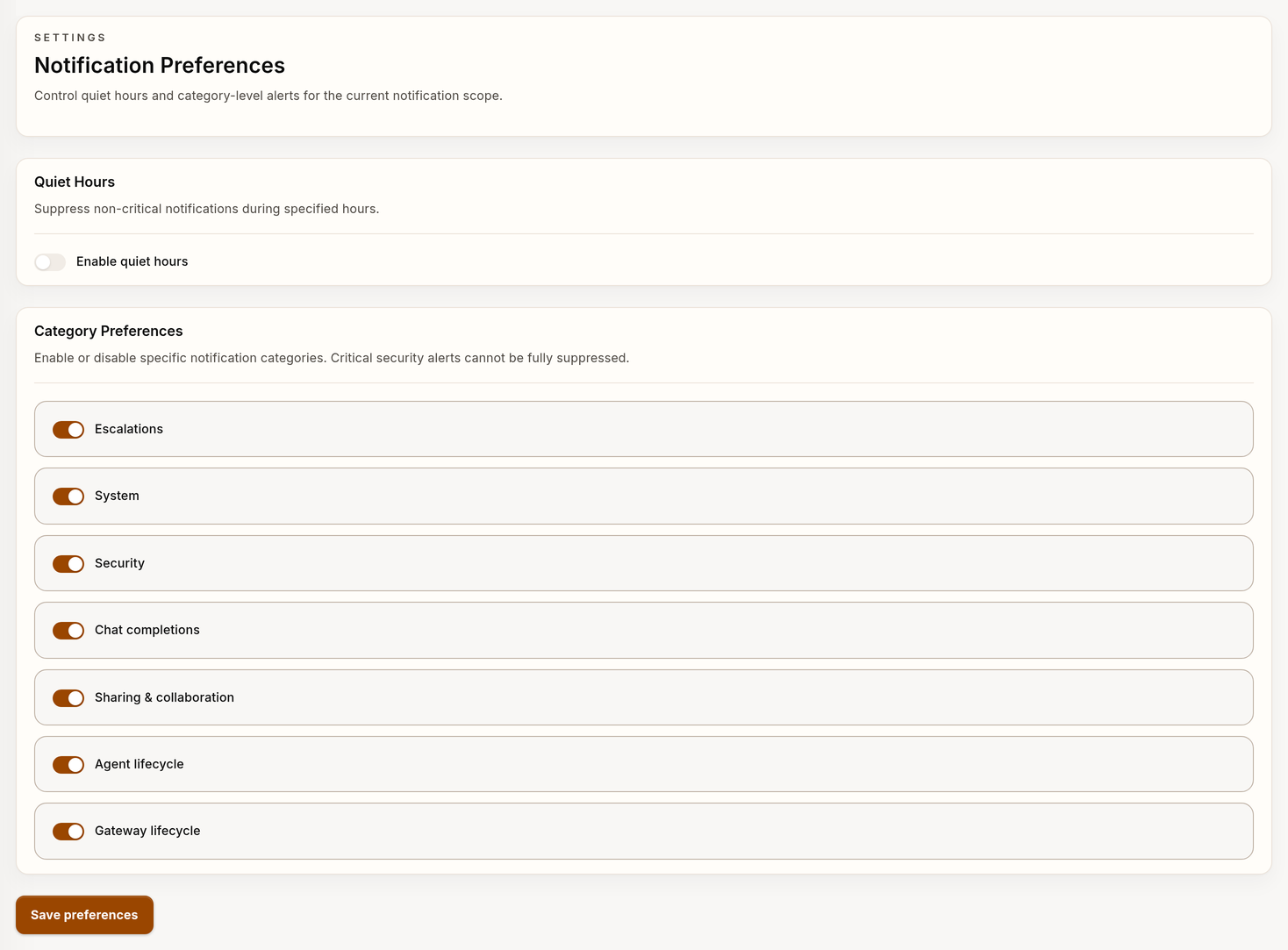
Example notification preferences with synthetic data.
Active opt-out categories include:
- Escalations
- System
- Security
- Billing
- Chat completions
- Sharing & collaboration
- Agent lifecycle
- Gateway lifecycle
Verdictan stores these controls when no active producer emits a category. The source table gives the active producer inventory.
An enabled category stays eligible for email when its producer and email channel are enabled. A disabled category suppresses only its email copy.
The in-app notification stays in Inbox.
Configure quiet hours
- Turn on Enable quiet hours.
- Select a start time and end time in 24-hour
HH:MMformat. - Select the timezone that applies to those times.
- Select Save preferences.
Quiet hours suppress email for non-critical categories during the configured window. The window includes the start and excludes the end.
When the start is after the end, the window continues across midnight.
For example, 22:00 to 08:00 includes the periods before and after midnight.
Equal start and end times create a zero-length window. They do not create an all-day quiet period.
The console offers UTC and these IANA timezone options:
- US Eastern (
America/New_York) - US Central (
America/Chicago) - US Mountain (
America/Denver) - US Pacific (
America/Los_Angeles) Europe/LondonEurope/BerlinAsia/Tokyo
Region-based options follow their daylight-saving rules. This selection does not change the display timezone in profile settings.
Critical-category behavior
Notifications categorized as Escalations or Security bypass quiet hours when email delivery and that category are enabled.
A category opt-out is a different control and can suppress that category's email. It cannot suppress the in-app copy, which is why the console notes that critical security alerts cannot be fully suppressed.
Save and verify preferences
After changing a time, timezone, or category:
- Select Save preferences.
- Wait for the Notification preferences saved confirmation.
- Reload Settings → Notifications.
- Make sure that the quiet-hours switch, times, timezone, and category switches match the selected values.
- For a practical check, use a non-critical notification created when the window is not active. Verify usual email delivery. Do not generate a security incident merely to test the critical bypass.
The console saves the full preference document and then reads it. A success message shows that the update request succeeded.
The reload check shows that the same user scope can read the stored values.
Deep links
Some notifications open the related console resource. Examples at this time include:
- Escalation notifications that open the related Inbox/escalation surface
- Conversation-share notifications that open
/history/{sessionId} - Disposable-token notifications that open
/tokens/{tokenId}
Notifications without an action link stay informational in Inbox.
Email delivery
Verdictan can send eligible Inbox notifications to the recipient's account email when email delivery is available for the deployment.
The stored preference must include email.
The settings page does not show the channel toggle.
Troubleshooting
| Symptom | What to examine |
|---|---|
| Preferences fail to load | Do not replace an unknown stored state with the displayed defaults. Reload the page first. Then, make sure that the API is reachable and your role has notifications:manage. |
| Save returns a permission error | An organization administrator must grant notifications:manage. Inbox-only notifications:read is not sufficient. |
| Save rejects a time or timezone | Use correct 24-hour HH:MM values and one of the timezone options shown by the console. The API rejects malformed times and unknown IANA timezone identifiers. |
| A notification is delivered during quiet hours | Examine its category. Escalations and Security intentionally bypass quiet hours. Other categories are suppressed only during the saved window. |
| Inbox works but email does not | Verify the stored email preference, category, quiet hours, and deployment email availability. The active screen cannot toggle email. |
| An event is not in Inbox | The active product does not create Inbox notifications for export completion, gateway change, budget threshold, or team invitation events. Use the owning product surface. |