How To: Resolve an Escalation
Use this workflow when an item in the review queue must have a human decision.
Outcome
At the end of this workflow, the escalation has one of these states:
- Claimed by the correct reviewer.
- Investigated against the underlying request and context.
- Completed with Resolve or Reject.
- Returned to the shared queue with Unclaim if the active reviewer cannot own it.
Workflow diagram
Step 1: Review the escalation first
Open Inbox. If necessary, filter to the escalation category. Examine these items:
- Escalation ID.
- Request ID or linked request context.
- Cause code.
- Active status.
- Configuration version, if available.
If the correct reviewer has claimed the escalation, do not claim it again.
Step 2: Compare the underlying request
Do not resolve the escalation from the queue alone. Open the related request. Review these items:
- The top-level outcome.
- The policy results that led to review.
- Identify if the behavior agrees with policy or shows rollout drift.
Step 3: Claim only when you review it
A claim sets ownership. Claim an item only when you actively review it.
Step 4: Select the supported queue action
For a claimed escalation, the active Inbox exposes:
- Resolve when the review is complete. Select
Allow,Block,Rewrite,Redact, orRejectedas the resolution. - Category to record a standard cause, such as
False PositiveorPolicy Update Necessary. This field is optional. - Notes to preserve concise review context. This field is optional and has a 2,000-character limit.
- Reject when you must reject the escalation.
- Unclaim when you are not the correct reviewer or cannot continue. This action returns the item to the shared queue.
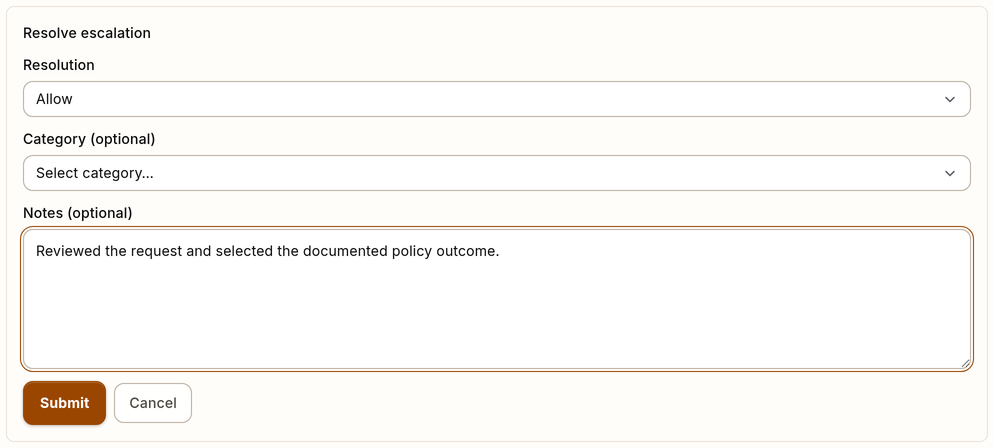
Example escalation resolution form with synthetic data.
The active customer UI does not give direct reassignment. Use Unclaim to return the item to the shared queue.
Step 5: Complete the queue action and track follow-up
After Resolve or Reject, make sure that the saved resolution, category, and notes show the specified decision. Track each downstream action in its owning workflow, such as:
- Policy tuning.
- Rollback review.
- Evidence export.
- Stakeholder notification.
If the active reviewer is not the correct owner, select Unclaim. Do not resolve the escalation with an unclear result. The item returns to the shared queue. The active Inbox does not reassign the item in the product.
Resolution checklist
- Escalation context reviewed.
- Underlying request reviewed.
- Ownership set.
- Resolution, category, and notes reviewed.
- Supported queue action selected.
- Follow-up tracked in its owning workflow when necessary.